Trim the clip
Cut the 3–10 seconds you actually need. Shorter clips render faster, cost fewer credits and stay more consistent.
Tip: start on the action. Dead time at the start still costs credits.
Convert real footage into anime in minutes, keeping every move
Upload a clip, pick an anime style, and DomoAI redraws every frame with clean line art and cel shading. Walks, dances, gestures and camera moves all stay the same. This guide covers the exact steps, the best styles and settings, and how to handle long videos.

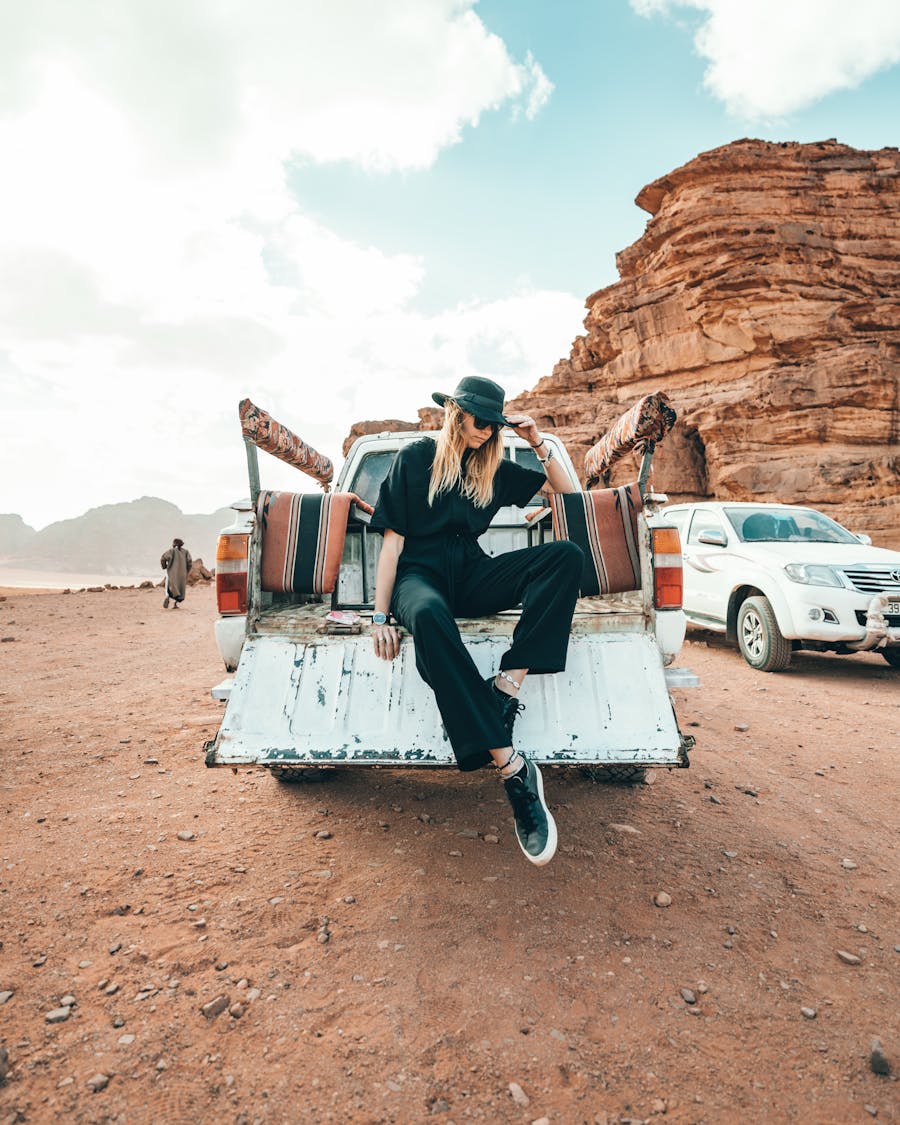
Anime has clean lines and flat color, so anything blurry, dark or busy in the source turns into messy lines and flicker.
Cut the 3–10 seconds you actually need. Shorter clips render faster, cost fewer credits and stay more consistent.
Tip: start on the action. Dead time at the start still costs credits.
Sign in at domoai.app and open Video to Video (Restyle). Upload your MP4, MOV or AVI, up to 50 MB.
Choose from 20+ anime presets, or upload an anime reference image to match a specific look.
Tip: generate a 3 s test, then use Re-gen to try other styles on the same upload.
Steer details the style can’t guess.
anime style, clean line art, cel shading, consistent character face, stable outlines, no flickerDuration (default 3 s), aspect ratio (9:16 for Shorts, 16:9 for YouTube), and Lip Sync, Subject Only or Screen Keying as needed.
Most clips are ready in 2–5 minutes. Watch faces, hands and mouth sync before you render longer parts.
Upscale with the Video Upscaler, then add music, captions and cuts in your editor. Audio from the original clip is kept.
DomoAI’s anime family includes Japanese Anime, Flat Color Anime and Detailed Anime, with 20+ anime presets in total. Names and versions change as models update.
Classic TV-anime look with bold lines and cel shading.
Best for: vlogs, skits, fan edits
Clean, minimal shading that stays very stable.
Best for: talking heads, explainers
Richer texture, lighting and hair detail.
Best for: close-ups, music videosUpload a frame in the exact anime look you want.
Best for: series and brand consistency| Setting | Use it when | Why |
|---|---|---|
| Lip Sync | Someone talks or sings | Keeps the anime mouth matched to the original audio; needs a visible mouth at a front or 3/4 angle |
| Subject Only | You want an anime person on a real background | Applies the style only to the main subject |
| Screen Keying | Green screen footage | Removes or replaces the background in the same pass |
| Model version | Framing changes | V6 suits half-body and close-ups but isn’t recommended for full body |
| Duration | Always | Default 3 s; up to 10 s per generation |
| Aspect ratio | Before you generate | 9:16 Shorts/Reels/TikTok · 16:9 YouTube · 1:1 feed |
Video to Video generates up to 10 s at a time. Enter your video length to plan the segments, the render time and the cut points.
Tip: cut at natural breaks (scene changes, pauses, beats) so joins don’t show.
| Problem | Fix |
|---|---|
| Flickering lines | Steadier footage, a flatter style (Flat Color), and “stable outlines, no flicker” in the prompt |
| Face changes between frames | Closer, front-lit shots; add “consistent character face”; switch model for full-body clips |
| Mouth out of sync | Turn on Lip Sync; keep the mouth visible and well lit |
| Messy anime background | Simplify the background, or use Subject Only / Screen Keying |
| Not “anime enough” | Try Detailed or Japanese Anime, or upload an anime reference frame |
| Blurry result | Use a 1080p source and upscale the final output |
Everyday moments become anime episodes for Shorts and Reels.

Full-body dances in anime style. Pick a model suited to full body.
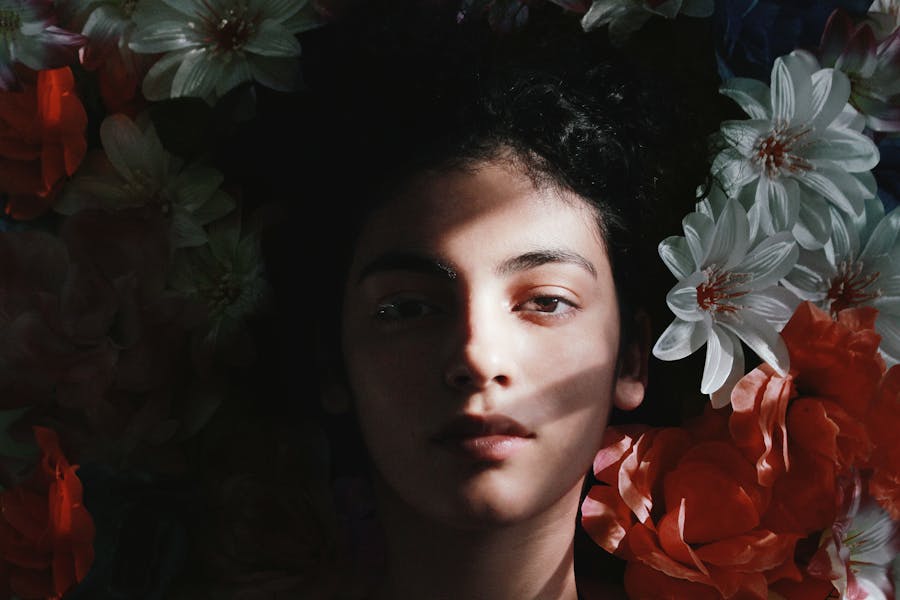
Performance footage with Lip Sync on for singing.
Cities and landscapes in a soft anime look.
Open Video to Video (Restyle) at domoai.app, upload an MP4, MOV or AVI up to 50 MB, choose an anime style, set Lip Sync or Subject Only if needed, and generate. Most clips are ready in 2–5 minutes.
20+ anime presets, including Japanese Anime, Flat Color Anime and Detailed Anime. You can also upload an anime reference image to match a specific look.
Video to Video generates up to 10 seconds per run; DomoAI’s Restyle page mentions videos up to 30 seconds. For longer videos, split them into segments with the same style and settings, then join them in an editor.
Yes. Restyling keeps the original movement and camera, and the audio is preserved. Turn on Lip Sync so speaking or singing mouths stay matched.
Yes. Turn on Subject Only so the anime style applies only to the main subject. For green screen footage, Screen Keying can remove or replace the background.
Usually because of shaky or fast footage, low resolution, busy backgrounds or a very detailed style. Use steadier 1080p footage, try Flat Color Anime, and add “stable outlines, no flicker” to the prompt.
You can test with free starter credits; free outputs are watermarked. Paid plans remove the watermark, and Standard and above include Relax mode on supported models.
Only footage you own or have permission to use. Get consent from people on camera, and respect platform rules on AI-generated content.
Upload a clip, pick an anime style, and keep every move. Start with free credits.